 LanguagesHow-to4 min read
Multilingual Dictation on Mac: Dictate in Two Languages
How to dictate in more than one language on a Mac, switch between languages as you talk, and keep accuracy high in each.
 Jay P ·
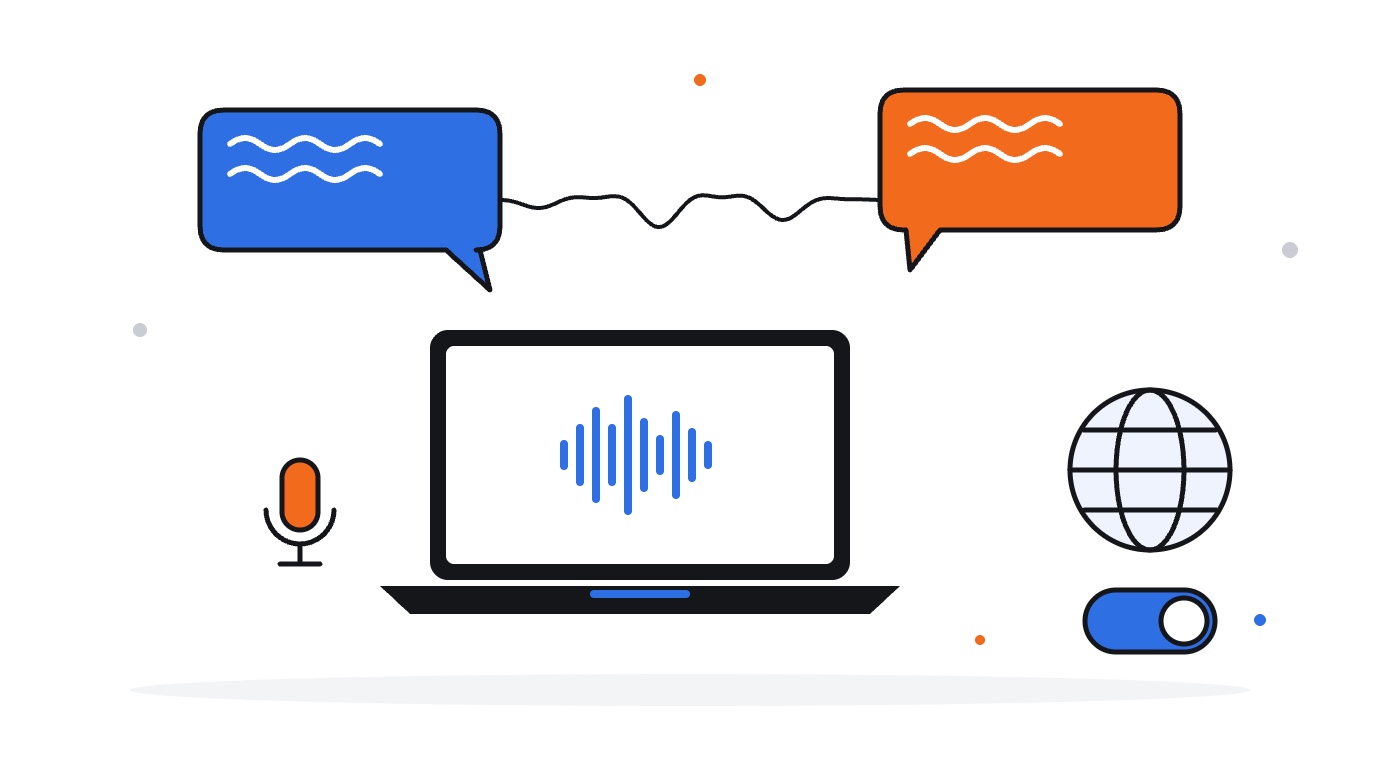
Plenty of people do not work in one language. You might write to clients in English, message family in Spanish, and keep notes in a mix of both. Most dictation setups assume one language at a time, and switching means digging into settings in the middle of a thought.
Multilingual dictation lets you pick the languages you speak and move between them without stopping. Speechy can transcribe several languages on your Mac and switch between them as you talk.
Quick answer: how to dictate in two languages on Mac
- Check that your dictation app supports every language you speak.
- Pick a speech model that is strong in those languages.
- Turn on multiple languages, or auto-detect, and add the languages you use.
- Dictate a short test in each language, then a sentence that mixes them.
- Add names and terms in both languages to your vocabulary.
- Review accents, special characters and names before sending.
How multilingual dictation works
A speech model has to decide which language it is hearing before it can pick the words. There are three common approaches:
- One fixed language: you choose a language and the model only listens for it. Accurate, but you have to change the setting to switch.
- Auto-detect: the model guesses the language from what you say. Convenient, but a short phrase can be misjudged.
- A chosen set of languages: you tell the app which languages you speak, and it switches between only those. This is usually the best balance.
Narrowing the choice to the languages you actually use avoids a common failure: a few English words being transcribed as a different language that happens to sound similar.
Which setup fits how you work
| How you speak | Best setup | Why |
|---|---|---|
| One language most of the day | Fixed language | Most accurate, no guessing |
| Different languages for different people | Fixed language, switched per conversation | Each message stays in one language |
| Both languages in the same message | Multiple languages in one dictation | Switches as you talk |
| Not sure which language you will use | Auto-detect | No setup, some risk on short phrases |
Say it. Speechy writes it.
Hold Fn, speak, and clean text lands in any app on your Mac.
A worked example: a bilingual support lead
Consider Ana, who runs customer support for clients in Spain and the UK. She answers English tickets in the morning and Spanish ones after lunch, and her internal notes switch between the two mid-sentence.
With a single-language setup, her Spanish replies came out as English words that sounded close, and she kept opening settings to switch. She turns on multiple languages in one dictation, adds English and Spanish, and dictates as she speaks. A note like "Cliente de Madrid, refund approved, enviar confirmación hoy" comes out in both languages, with the accents in place.
She adds her clients' company names to the dictionary once, and they come out right in both languages.
How to set up multilingual dictation on Mac
Start by checking language support. Not every app or model covers every language, and quality varies. Apple lists the languages its own Dictation supports in its Mac Dictation guide.
Pick a speech model that is strong in your languages. In Speechy you can filter on-device voice models by language before you download one.
Add only the languages you actually speak. Every extra language is another one the model might wrongly pick.
Test with real sentences. Dictate a typical message in each language, then one that mixes them, and check accents, punctuation and names.
Add names to your vocabulary. People and company names are often spelled in one language and pronounced in another. A custom vocabulary entry keeps them consistent.
Say it. Speechy writes it.
Hold Fn, speak, and clean text lands in any app on your Mac.
How Speechy handles more than one language
Speechy transcribes English, Spanish, French, German, Italian, Portuguese, Dutch, Hindi, Japanese and Chinese on your Mac. Pick one language, choose Auto-detect, or turn on multiple languages in one dictation and add two or more. Speechy then switches between them as you talk.
Transcription runs on your Mac, so switching languages does not send your voice anywhere. Your Dictionary, replacements and voice commands work alongside whichever language you are speaking, and the text lands in whatever app has your cursor.
Limits of multilingual dictation
Switching works best between full phrases. A single foreign word inside a sentence, like a dish name or a street, may be transcribed in the main language. Add those words to your vocabulary.
Similar languages are harder to tell apart. Spanish and Portuguese, or Dutch and German, can be confused on short phrases. If you only use one of a similar pair, do not add the other.
Accuracy differs by language and model. A model that is excellent in English may be weaker in Hindi or Japanese. Test the languages you rely on before you build a workflow around them.
FAQ about multilingual dictation on Mac
Can Mac dictation switch languages automatically?
Some apps can. Speechy can detect the language, or switch between a set of languages you choose as you talk. Choosing your languages is usually more reliable than full auto-detect.
Can I mix two languages in one sentence?
Yes, with multiple languages turned on in one dictation. It works best when you switch between phrases rather than single words.
Which languages does Speechy support?
Speechy transcribes English, Spanish, French, German, Italian, Portuguese, Dutch, Hindi, Japanese and Chinese on your Mac.
Does multilingual dictation work offline?
In Speechy, yes. Transcription runs on your Mac in every language, so it works without an internet connection. See our guide to offline speech recognition for Mac.
Why does dictation write the wrong language?
Usually because the phrase was short or the languages sound alike. Narrow the list to the languages you actually speak, and dictate in complete phrases.
If you work in more than one language, download Speechy, add the languages you speak, and dictate your next message the way you would say it.