 PrivacyHow-to7 min read
Offline Speech Recognition for Mac: Private Dictation
Learn how offline speech recognition for Mac keeps dictation on your device and when local transcription is the right choice.
 Jay P ·
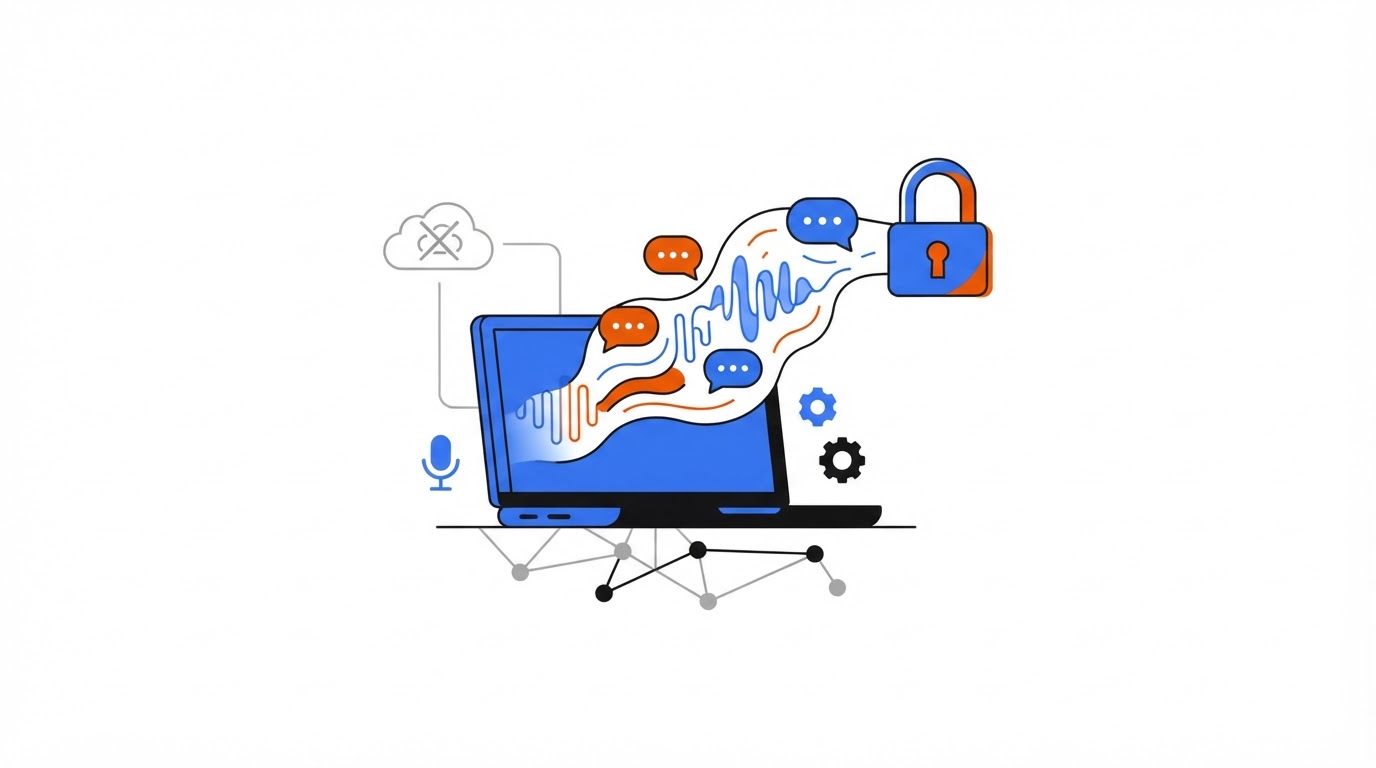
A spoken draft can include client names, health details, internal project plans, and half-formed decisions. Sending every recording away for processing creates an extra data path before the words ever reach your document.
Offline speech recognition for Mac processes dictation with a speech model running on the computer. Speechy is built around on-device voice models, so you can dictate into your usual Mac apps while keeping the core transcription workflow on your device.
Quick answer: how to use offline speech recognition for Mac
Use this workflow for private local dictation:
- Install a Mac dictation app with on-device speech models and download the language model you need.
- Grant microphone and accessibility permissions so the app can hear you and place text in the active field.
- Open the email, document, chat, or notes app where you want words to appear.
- Start dictation, speak in short thought groups, and say punctuation or use voice commands where supported.
- Review names, numbers, and sensitive wording before sending or saving.
- Use local transcription when an internet connection is unreliable or the content should stay close to your Mac.
What on-device speech-to-text means on a Mac
Speech recognition has several stages: capturing microphone audio, turning sound into text, formatting the text, and inserting it into an app. With on-device processing, the recognition model runs on your Mac rather than relying on a remote server for the core audio-to-text step.
That setup gives you three practical benefits:
- Privacy: voice recordings and the raw transcription process stay on the computer.
- Availability: dictation can continue when Wi-Fi drops, during travel, or in restricted networks.
- Responsiveness: text can appear quickly because audio avoids a round trip to a remote service.
Local speech recognition still needs disk space and processing capacity for its language model. The initial app or model download also requires an internet connection. A Mac may communicate with the internet for updates, licensing, optional online features, or diagnostic settings depending on the software you choose. Read the app's privacy details and network settings before using it for regulated or highly confidential material.
Apple also explains that Dictation settings and availability can vary by language, region, and macOS version in its Mac Dictation guide. Check the language you actually use before building a workflow around any dictation tool.
What stays on your Mac with local dictation
The most useful way to assess a privacy claim is to trace the data through the workflow. Ask where each item goes, how long it remains there, and which feature introduces an external connection.
| Part of the workflow | On-device processing on Mac | What to check before dictating sensitive content |
|---|---|---|
| Microphone capture | Audio is captured by the app on your Mac | Confirm microphone permission is limited to the tool you intend to use |
| Speech recognition | A downloaded voice model converts audio into words locally | Confirm the product explicitly offers on-device models for your language |
| Text insertion | The transcript is pasted or typed into the active Mac app | Review accessibility permission and test the target app |
| Transcript history | Storage behavior depends on the app's history settings | Check retention, deletion controls, and export behavior |
| Optional writing assistance | Some tools may use additional processing for rewriting or context features | Check each feature's data handling separately before enabling it |
Say it. Speechy writes it.
Hold Fn, speak, and clean text lands in any app on your Mac.
"On-device" describes a processing location. It does not answer every privacy question by itself. A useful review includes the recording location, transcript history, crash logs, account data, app permissions, and any optional assistant feature.
For Speechy, start with the Dictation page and its on-device model details. Then inspect the permissions macOS shows under Privacy & Security. Apple documents how app permissions work in its Privacy & Security settings guide.
When offline dictation is useful
Local dictation earns its place when privacy, reliability, or speed affects the work itself. A few common situations come up repeatedly.
A lawyer may dictate a rough case note between meetings. A clinician may draft a personal reminder that includes sensitive context. A product manager may talk through an unreleased feature while on a train. A developer may dictate an issue description while working inside a corporate network with strict outbound controls.
It also helps during ordinary interruptions. Hotel Wi-Fi can be unstable. Airplane mode removes network access. A VPN can introduce delay. Local processing keeps the act of getting words onto the screen independent from those conditions.
Offline dictation also suits people who think aloud. You can leave short pauses, correct yourself, and continue without treating each sentence as a performance for a network connection.
A worked example: drafting a confidential Slack update
Consider Maya, a project lead preparing an internal update for the #launch-ops channel. She has an unstable connection at an airport and needs to mention the unreleased "Atlas" migration, two teammates, and a Friday decision.
She opens Slack, clicks the message box, and starts local dictation. Her first pass is: "Quick Atlas update uh the migration is ready for review by Priya and Mateo period I need sign-off Friday so we can start the staged rollout Monday."
The transcript appears in the active field. Maya removes "uh," confirms the names, and changes "Friday" to the specific date before sending. The practical failure point here is clear: speech recognition may hear an unusual project name incorrectly. She adds "Atlas," "Priya," and "Mateo" to the app vocabulary when available, then checks the final sentence every time the stakes are high.
For app-specific setup, follow Speechy's guide to dictating in Slack on Mac. The same pattern works for a longer client email in Gmail or a draft in Notion.
How to set up private dictation on Mac
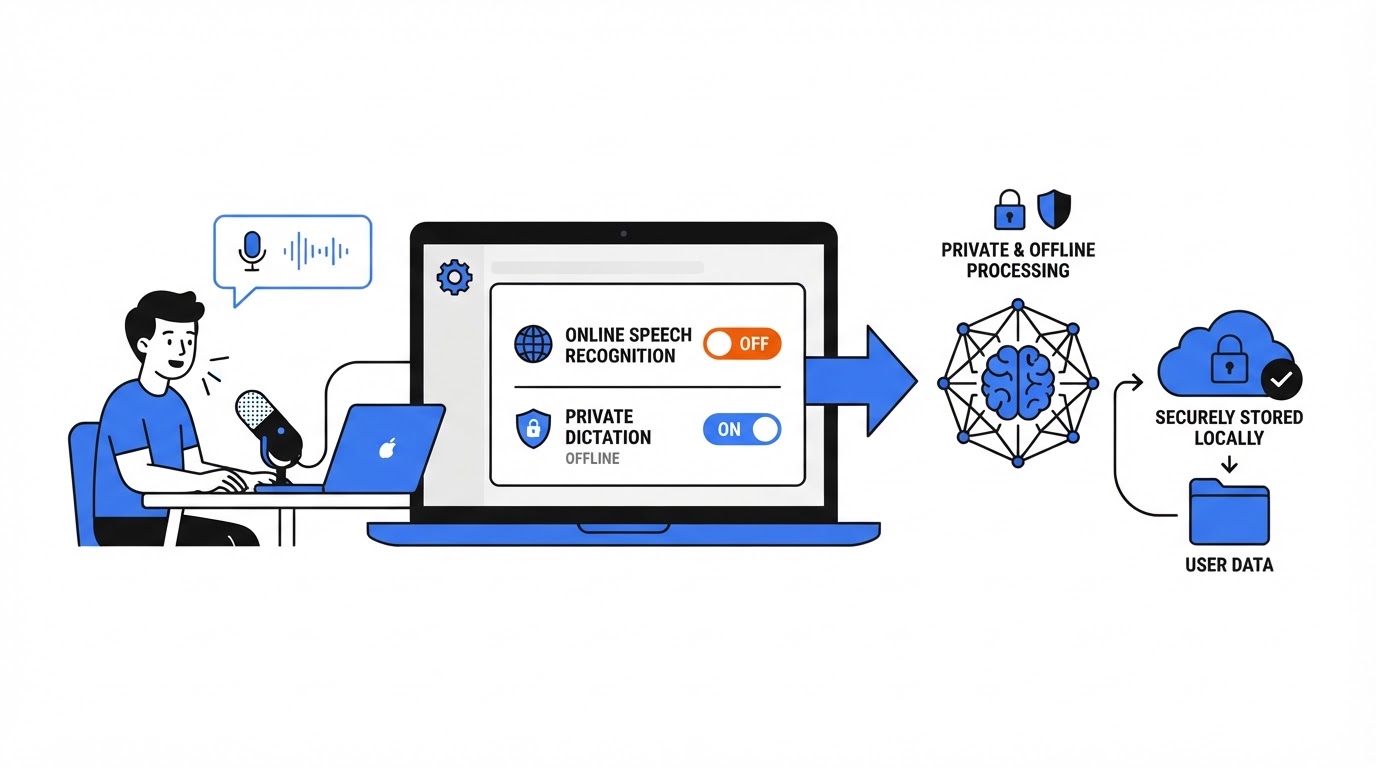
Start by choosing the microphone you will actually use. Built-in Mac microphones work well for a quiet room. Wired headsets or a quality USB microphone give more consistent results in shared spaces. Run a short test with names, acronyms, and the kind of numbers you say in your work.
Next, give the dictation app permission to use your microphone. Apps that place text inside other programs usually need Accessibility permission as well. That permission is what lets the tool insert recognized text into the focused email composer, Slack field, document, or note.
Open your target app before starting. A local dictation tool that supports dictation in any app can follow the cursor rather than forcing you to copy and paste from a separate transcription window.
Speak punctuation when you need dependable structure: "comma," "period," "new paragraph," and "question mark." Voice commands can speed up corrections, but review the available phrases and practice them in a low-stakes note first. Speechy's voice commands are useful for this part of the workflow.
Say it. Speechy writes it.
Hold Fn, speak, and clean text lands in any app on your Mac.
Finally, create a habit for reviewing risky details. Scan proper nouns, dates, dollar amounts, negative words, and commitments. Speech recognition is strongest when it supports your judgment instead of replacing it.
How Speechy handles local dictation across Mac apps
A basic local setup often leaves people switching between a recorder, a transcription window, and the app where the final text belongs. Speechy shortens that path.
First, download Speechy and select the language and input microphone. Its on-device voice model handles the spoken-word recognition on your Mac.
Next, place the cursor where the text should go. That may be a Slack message, a Gmail draft, an Outlook reply, a Notion page, or a Word document. Speechy works with the active text field, which keeps the transcript close to the work instead of creating a separate copy-paste step.
Then dictate naturally and use formatting cues when needed. Speechy can provide a live preview, helping you catch a misheard name before the text lands in a message. For repeated terminology, use its vocabulary and correction tools to improve how your own terms are handled over time.
When the draft is ready, review it in the destination app. This remains especially important for messages that trigger a decision, disclose sensitive information, or go to a large channel. Download Speechy when you want a local-first dictation workflow that follows you between Mac apps.
Limits and failure modes of offline speech recognition for Mac
Local speech recognition is practical, though it benefits from realistic expectations. Background conversations, a loud café, a poor Bluetooth connection, and a microphone placed too far away can all reduce accuracy. Start close to the microphone and use a quieter input source when possible.
Specialized vocabulary needs attention too. Product codenames, medication names, legal citations, and technical identifiers create transcription risk. Add frequent terms to a custom vocabulary, speak ambiguous names clearly, and check them before saving.
Language support is another constraint. A model may handle one language or accent better than another. Test your normal speaking pace and vocabulary rather than relying on a short demo phrase.
Some work also requires online services by design. Collaborative editing, sending email, and posting a Slack message still need their respective network connections. Local speech recognition protects the transcription stage while the final app continues to operate under its own account, retention, and privacy rules.
FAQ about offline speech recognition for Mac
Can I dictate on a Mac without internet?
Yes, once an app has its on-device speech model installed, the speech-to-text portion can run without an internet connection. Download the app and language resources before travel, then test in airplane mode with a short note.
Is offline dictation private enough for confidential work?
It can reduce exposure by keeping microphone audio and transcription on the Mac. Your full privacy posture also depends on app permissions, transcript history, destination apps, device encryption, backups, and any optional online features. Use your organization's security policy for regulated information.
Does local dictation work in Slack, Gmail, and Word?
It can, provided the dictation tool can insert text into the active field and has the required macOS permissions. See Speechy's instructions for dictating in Word on Mac if Word is part of your daily workflow.
Why does my Mac dictation get names wrong?
Names often have several valid pronunciations and spellings, while internal product terms may be absent from the language model. Speak the name clearly, add it to custom vocabulary when the app offers that option, and proofread names before you send anything.
Should I use Apple Dictation or a dedicated Mac dictation app?
Apple Dictation is a convenient place to begin because it is built into macOS. A dedicated app may suit you when you need on-device models, cross-app insertion, vocabulary controls, live preview, or more hands-on dictation settings. Compare your everyday writing locations and privacy requirements before choosing.
If your work regularly moves between messages, documents, and project tools, install Speechy, test it with your own vocabulary, and keep local dictation ready for the moments when privacy and a reliable connection matter most.
Add speechy.tech to your preferred sources in Google