Add Reminders by voice on your Mac
Ask Speechy to add, move or complete a reminder from any app. It works with the Reminders app on your Mac, and your voice is transcribed on your Mac.
Dictate into Reminders
Click into a reminder, hold Fn and speak. Change your mind mid-sentence and Speechy keeps only what you meant.
You say“let's meet at 8pm at the library, sorry make it 9pm”
Speechy typesLet's meet at 9 PM at the library.
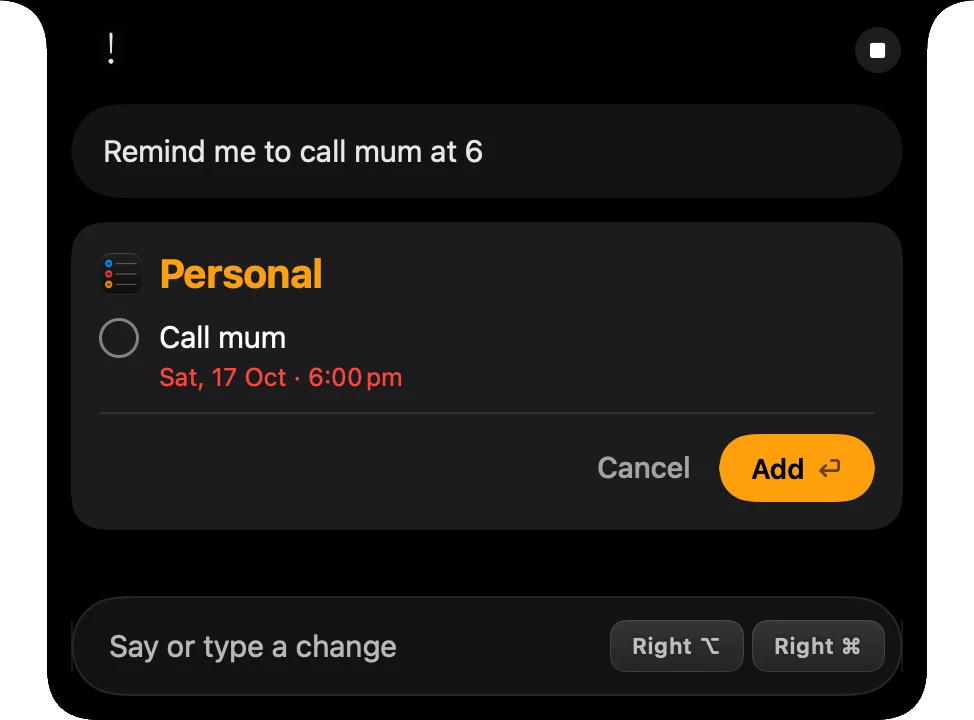
Add and move reminders by voice
Press ⌥⇧Space from any app and ask. A new reminder shows in the notch first, and you can move, edit or complete reminders the same way.
Try saying
- Remind me to call mum at 6
- Move the dentist reminder to Friday
Asking sends your question as text to the AI that answers it. Your voice recording stays on your Mac.
What Speechy can do in Reminders
You choose for each one: Always, Ask first (it shows in the notch before it runs) or Never.
- See remindersLists, due dates and what you finishedAlways
- Add remindersShows the reminder in the notch firstAsk first
- Complete remindersDone or not done again. Shows what will change firstAsk first
- Edit and move remindersTitle, due time, notes, priority and listAsk first
- Delete remindersRemoves a reminderNever
Set up Reminders in three steps
- Download SpeechyFor Macs with Apple silicon and macOS 14 or later.
- Turn on RemindersIn Integrations, turn on Reminders and allow access when macOS asks.
- AskPress ⌥⇧Space and try “Remind me to call mum at 6”
More integrations
 Gmail
Gmail Outlook
 Slack
Slack Notion
 Linear
 Google Docs
 iMessage
 Obsidian
 Claude Code
Say it. Speechy writes it.
Hold Fn, speak, and clean text lands in any app on your Mac.