Spoken answers
When Speechy's notch assistant answers on your Mac, it also says one short line out loud, like "Found it, your invoice went out yesterday." Pick the voice, volume and playback speed in Settings, Audio, Voiceover, or turn off Speak answers. It stops the moment you talk, ask again or close the notch.
How to use Spoken answers
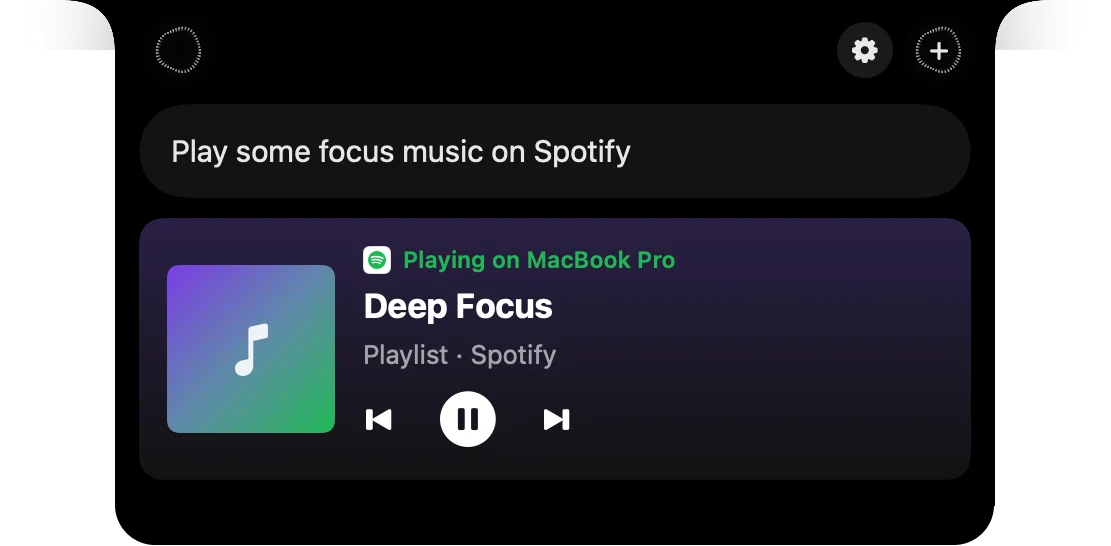
Ask the notch
By voice or by typing.
It answers out loud
One short line, said as soon as the audio loads.
Pick a voice
Click any of the five to hear it.
Set volume and speed
Speed snaps from 0.25× to 2× and keeps the voice's pitch.
What you do, what Speechy does
Speechy's notch
You do
“Ask "Did the invoice go out?"”
Speechy does
Shows the answer and says "Found it, your invoice went out yesterday."
Speechy's notch
You do
“Start talking while it speaks”
Speechy does
It stops speaking so it can listen.
Speechy's notch
You do
“Hold Fn to dictate while it speaks”
Speechy does
It goes quiet straight away.
Make it sound right.
In Speechy, Settings, Audio, Voiceover. Notch settings has the voice and volume too.
- Speak answersSpeechy says a short line when it answersOnOff
- VoiceClick a voice to hear itEveHannah JayneVerityEmmaHope
- Playback speedA sample plays when you let go0.25×0.5×0.75×1×1.25×1.5×2×
Questions
Yes. Switch off Speak answers in Settings, Audio, Voiceover. The answer still shows in the notch.
No. Speechy keeps the voice's pitch at every speed from 0.25× to 2×.
Turn on Captions in Settings, General, Appearance, and the line shows on a pill under the notch with each word lit as it's said.
Emma. If you picked another voice before, Speechy keeps it.