Share and export
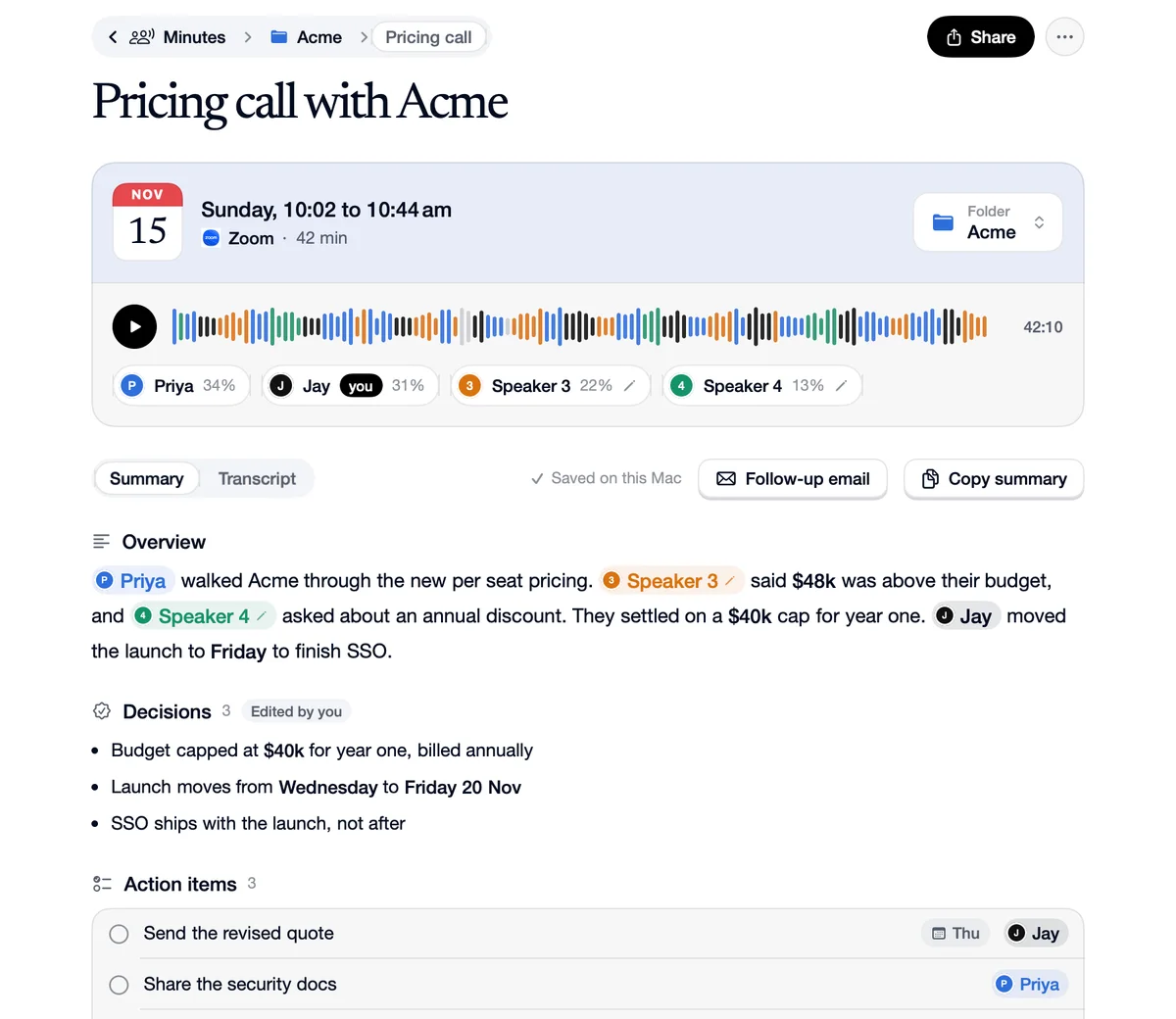
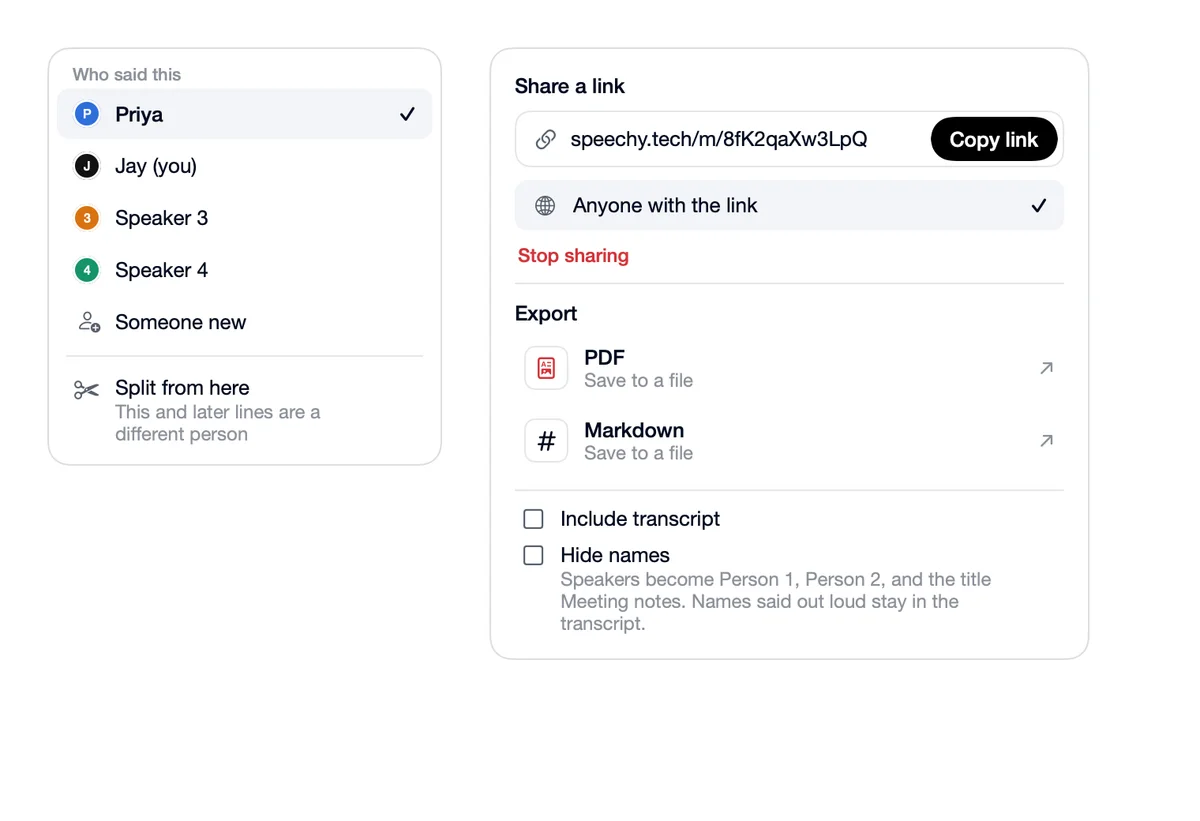
Share on a meeting's page makes a read-only link to its notes, for anyone with the link or, with a work account connected, only people at your company. Export saves a PDF or a Markdown file, or makes a Google Doc or a Notion page. Include transcript and Hide names apply to all of them. A shared link stays on Speechy's server until you stop sharing.
How to use Share and export
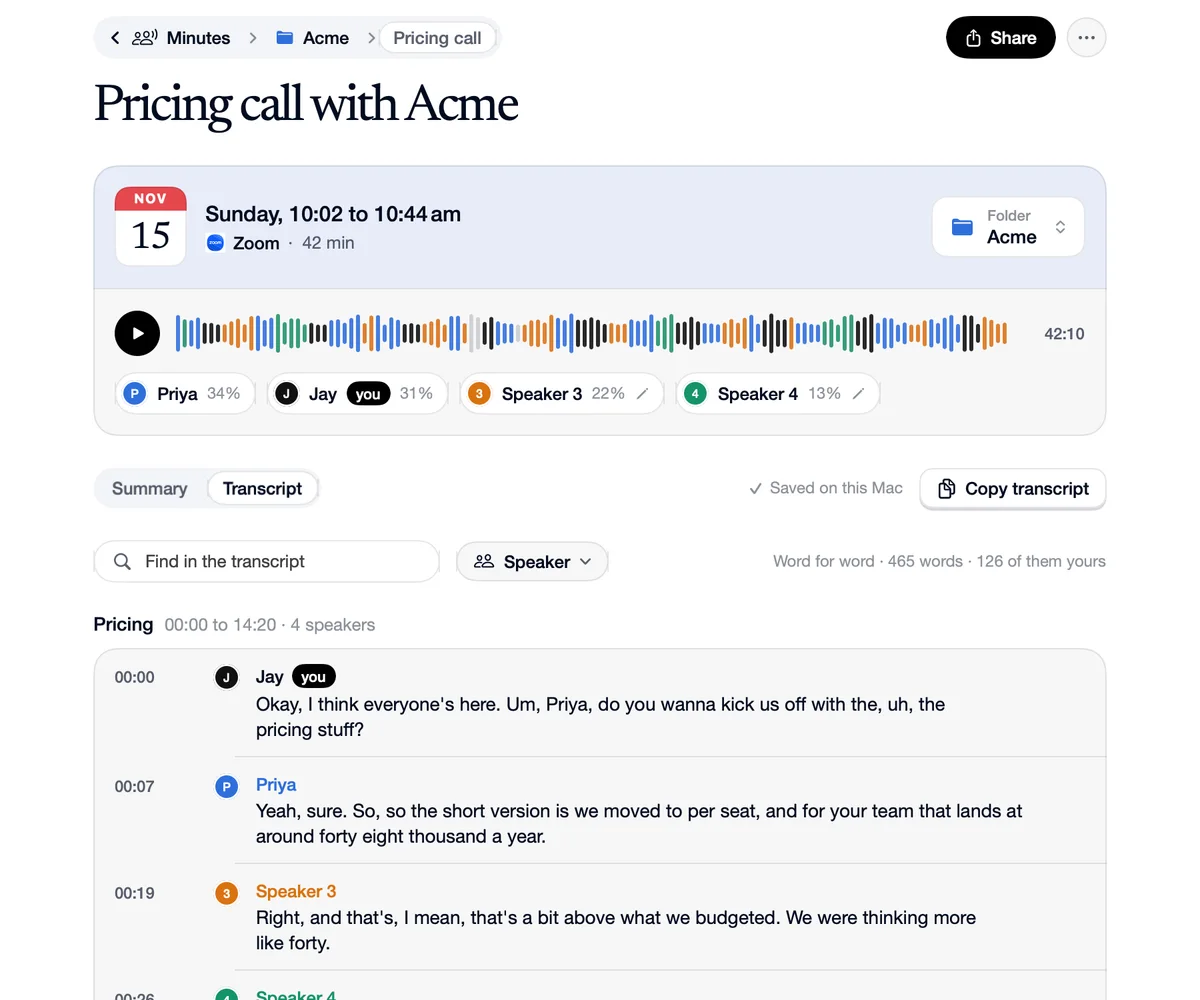
Click Share
At the top of the meeting's page.
Copy the link
Anyone with the link, or only people at your company's domain.
Or export it
PDF, Markdown, Google Docs or Notion.
Where it goes, what it is
 Notion
To
“Export to Notion.”
As
A Notion page with the summary, and the transcript if you include it.
 Google Docs
To
“Export to Google Docs.”
As
A doc in your Google Drive.
Link
To
“Copy link, Hide names on.”
As
A read-only page where speakers are Person 1, Person 2 and so on.
Questions
On Speechy's server, until you click Stop sharing. It's the only part of Minutes stored there.
With a work account connected, choose Only people at your domain. They sign in to Speechy's site to open it.