Names that stick
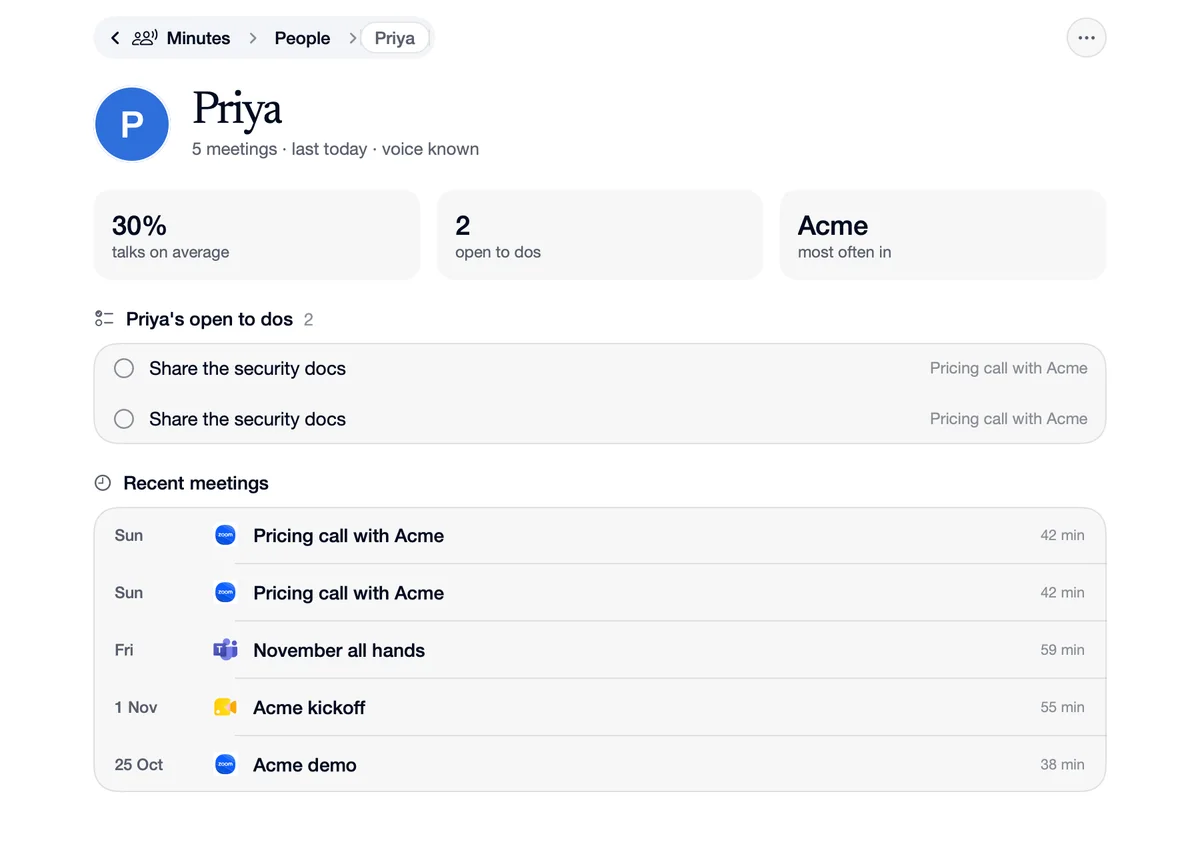
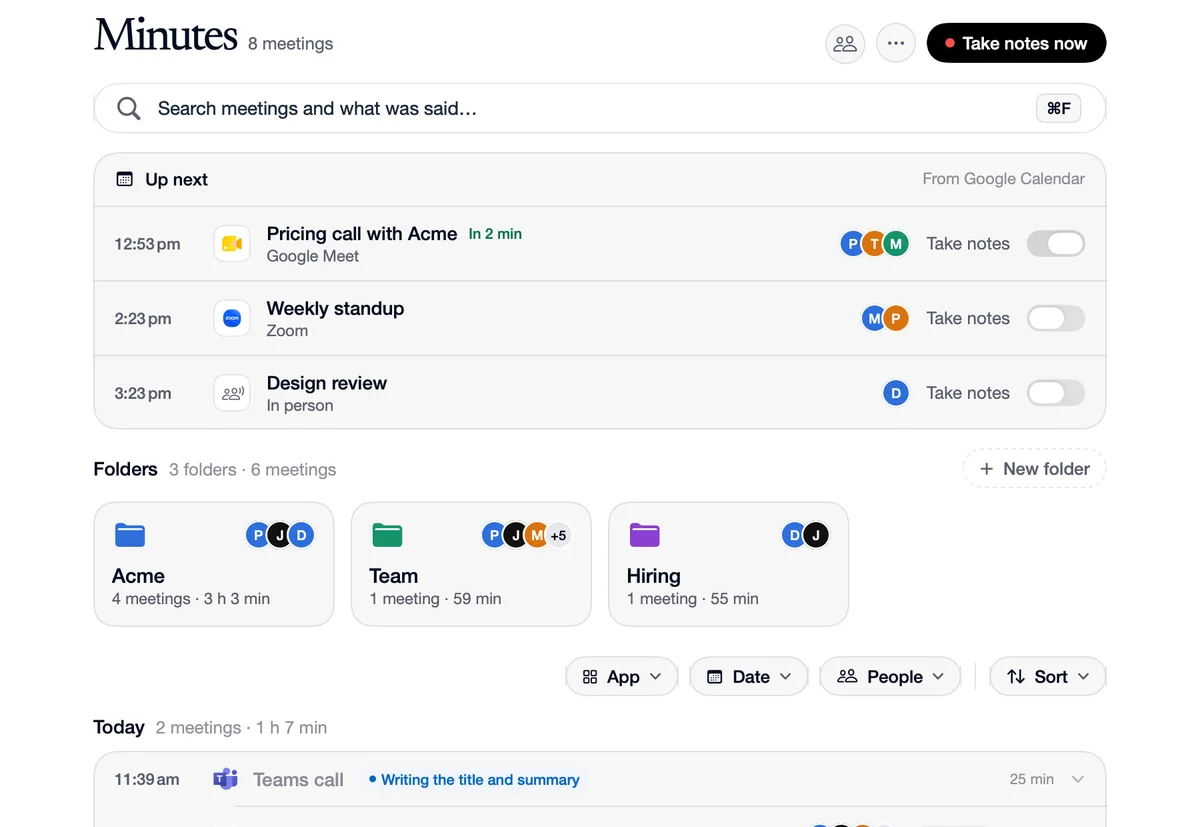
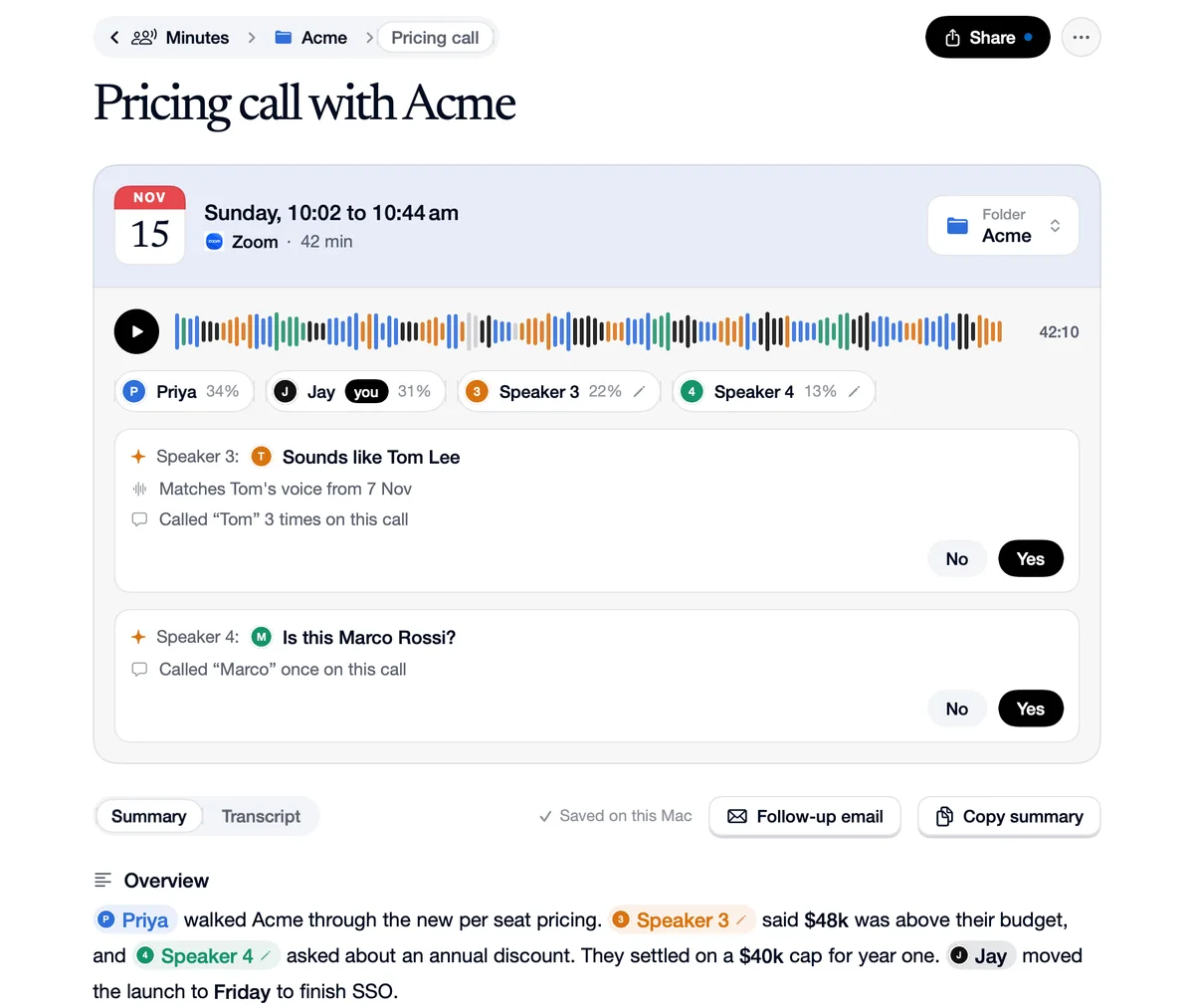
Naming a speaker saves their voice on your Mac. In the next meeting a clear match takes the name by itself, and a near match becomes a question: “Sounds like Tom Lee”, Yes or No. Names can also come from your calendar's invite list, or from what people were called on the call. Your own voice is learned from calls where only you were on the microphone.
How to use Names that stick
Name a speaker
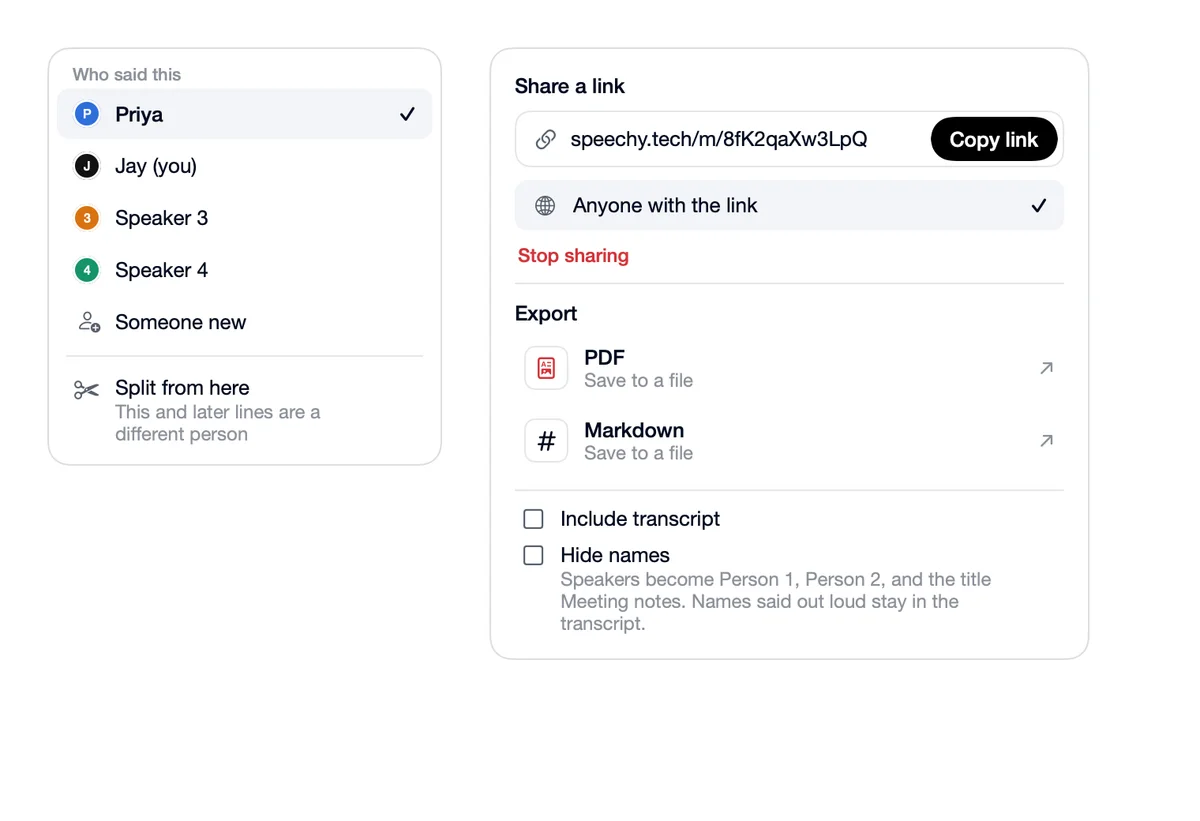
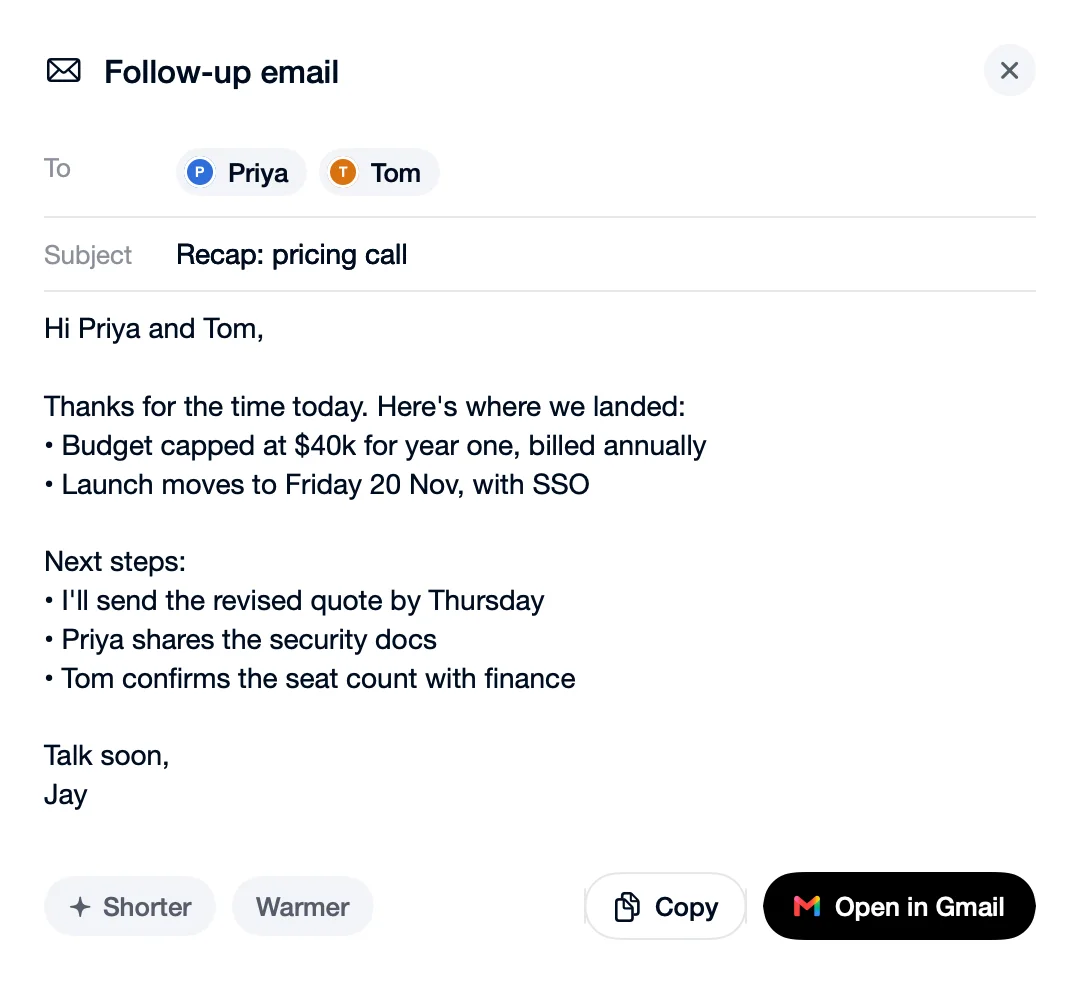
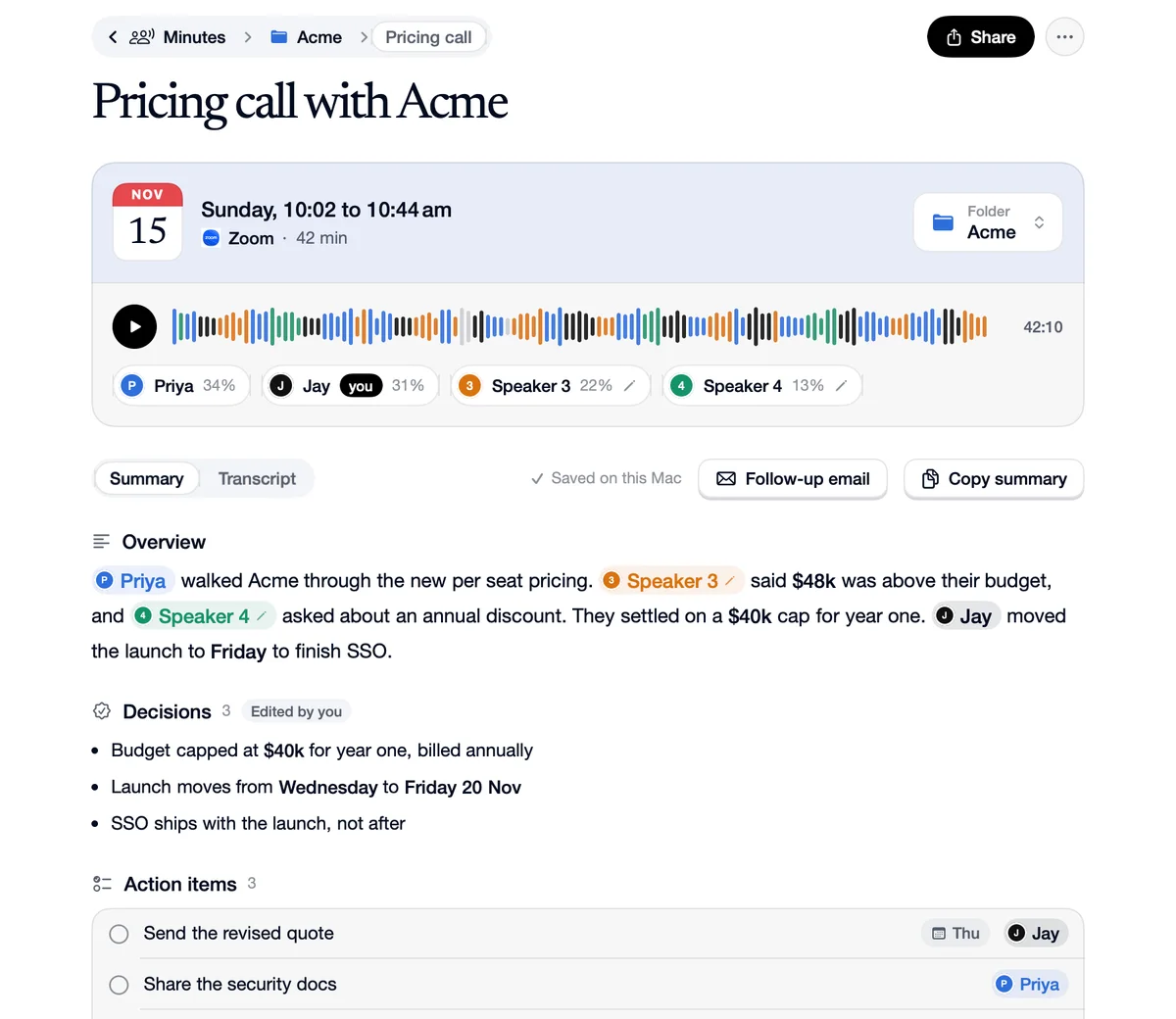
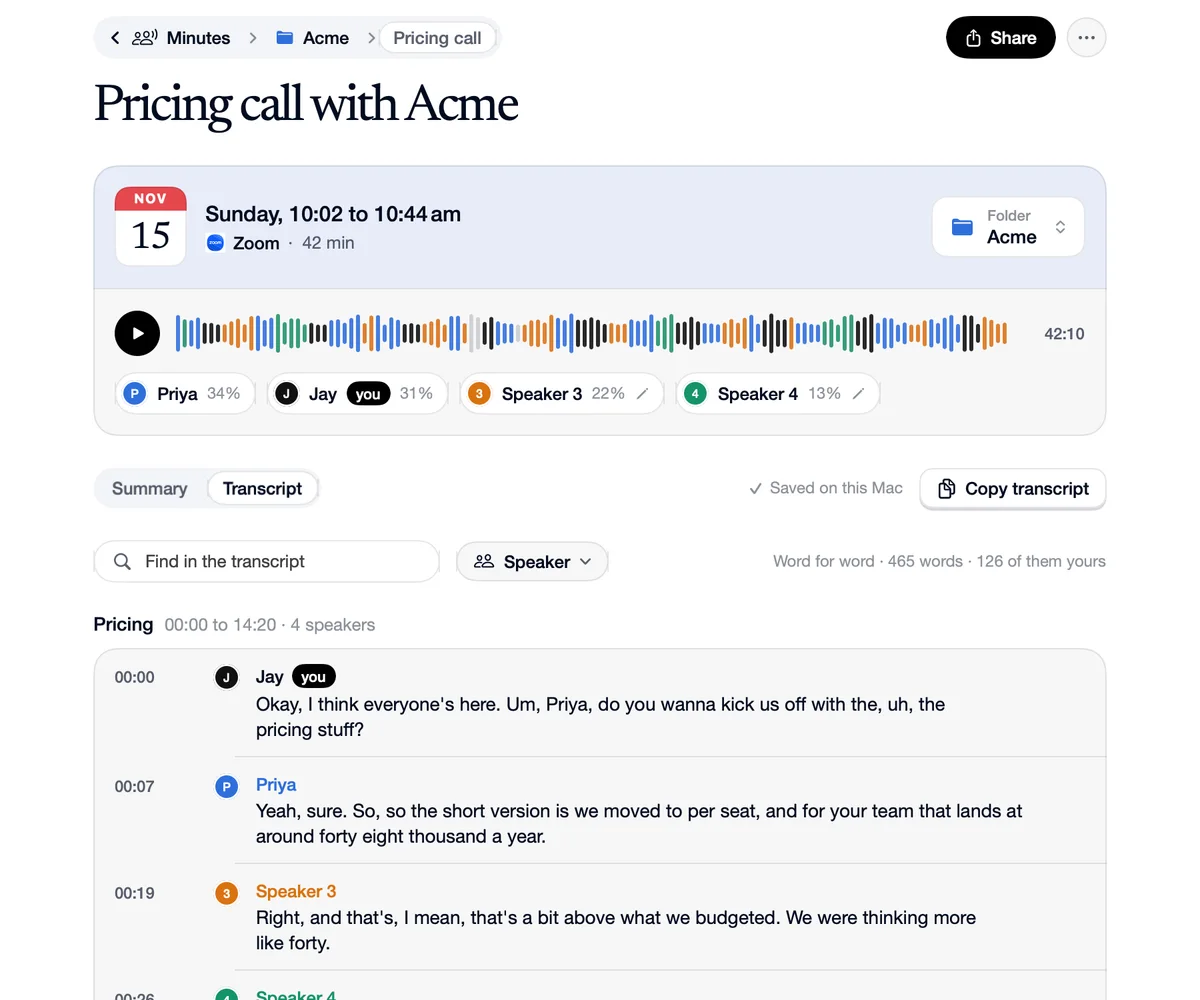
Click Speaker 3 on the meeting's card and type their name. Every place they're mentioned changes with it.
Next time, it knows
A clear match is named by itself. A close one asks.
Answer Yes or No
Either answer teaches it.
What it hears, what it does
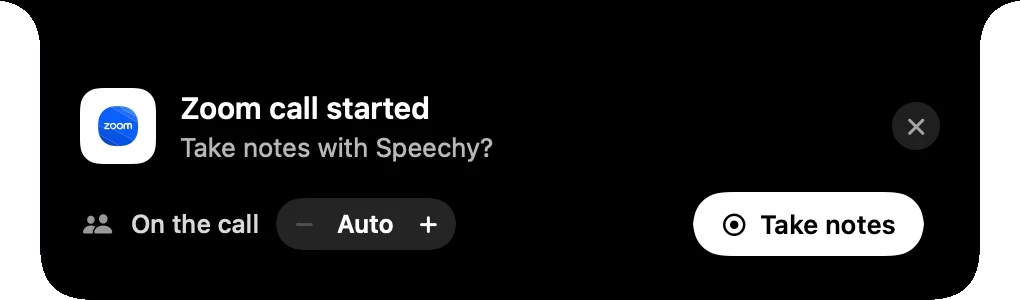
 Zoom
It hears
“Priya's voice, which you named last week.”
It does
Her lines say Priya, with nothing to answer.
 Google Meet
It hears
“A voice close to Tom's.”
It does
“Sounds like Tom Lee”, with Yes and No.
Choose how it names people.
On the People page in Minutes.
- Name people I've met before automaticallyA clear match takes the name by itselfOffOn
Questions
On your Mac. Forget removes one from the People page.
Two similar voices can be mixed up. Click who said a line to fix it, and the fix teaches the voice.